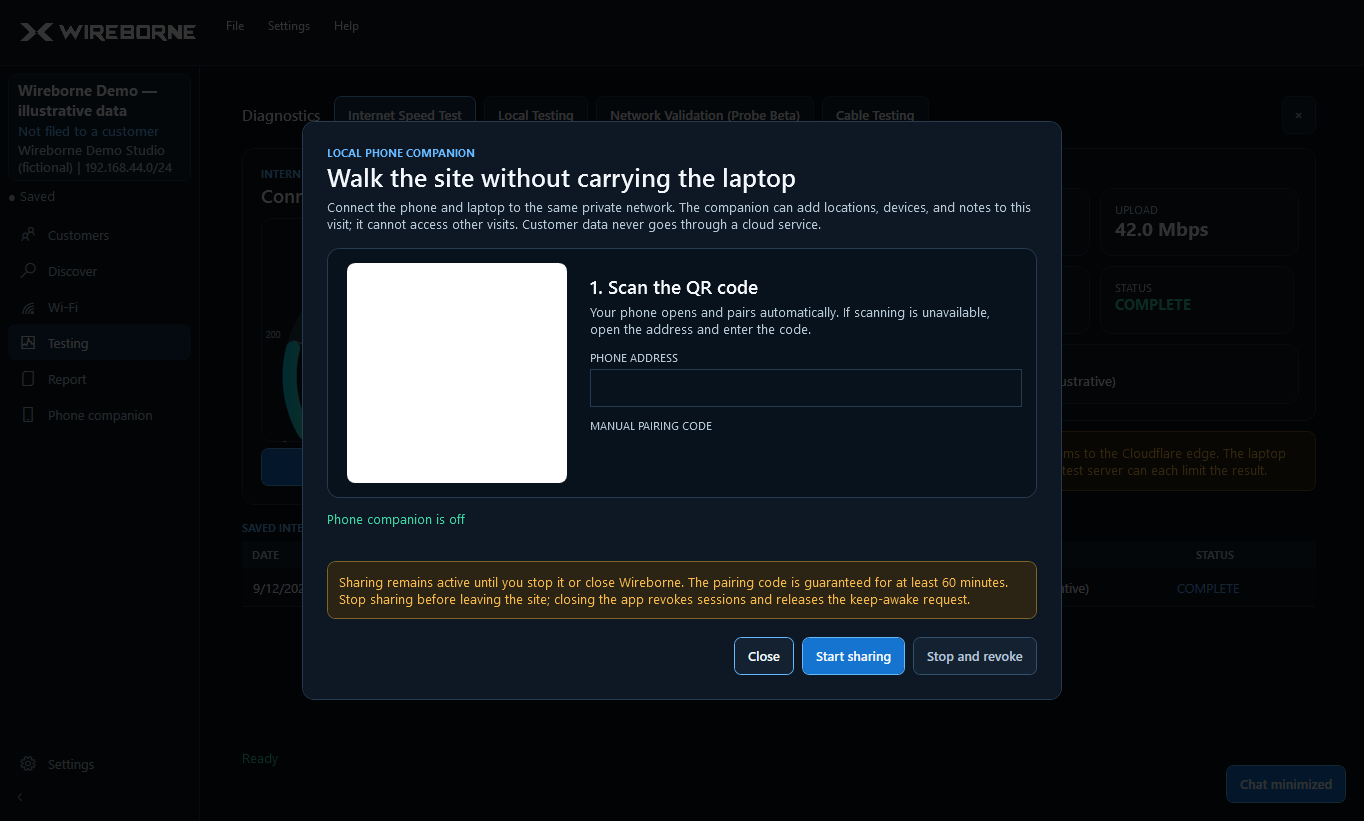
Phone Companion
Sync your phone via QR code to capture MAC addresses and manage devices from anywhere on the job site.Video Walkthrough
This walkthrough shows QR pairing, phone sync behavior, and on-site capture workflow.
How It Works
NetMap Pro runs a local web server on your laptop. When you scan the QR code with your phone, your phone connects to the same server over your shared Wi-Fi network. Both devices see the same project in real time — changes on either device sync automatically every 2.5 seconds.
Connecting Your Phone
- Connect to the same network — Make sure your phone is on the same Wi-Fi network as the laptop running NetMap Pro.
- Click the QR icon — In the NetMap Pro sidebar, click the QR code icon. A QR code appears on screen.
- Scan with your phone — Use your phone's camera to scan the QR code. It opens the NetMap Pro interface in your mobile browser.
- You're synced — Your phone now shows the same project. Add or edit devices on either device and changes appear on both within seconds.
Camera MAC Capture
The killer feature of the phone companion is capturing MAC addresses by taking a photo of the device label. This is invaluable for devices that aren't powered on yet — walk up, snap a photo, and the MAC address is added to your project.
How to Capture
- Tap "Add Device" on your phone.
- Tap the camera icon next to the MAC address field.
- Take a photo of the device label showing the MAC address.
- Confirm the reading — OCR reads the MAC address from the label. Verify it's correct and tap Confirm.
- Get close — fill the frame with the label
- Avoid glare — tilt the phone slightly to reduce reflections
- Good lighting — use your phone's flashlight in dark racks
- Hold steady — blurry photos reduce accuracy
Supported MAC Formats
The OCR recognizes these common MAC address formats on labels:
AA:BB:CC:DD:EE:FF(colon-separated)AA-BB-CC-DD-EE-FF(dash-separated)AABBCCDDEEFF(no separators)
If the label has both a MAC address and a serial number, make sure the OCR picked the right one — MAC addresses are always exactly 12 hexadecimal characters (0-9, A-F). You can edit the MAC manually if the OCR misreads it.
What You Can Do on the Phone
- View all devices in the current project
- Add new devices manually or via camera MAC capture
- Edit device details — name, IP, type, location, notes
- Add capture notes — use quick phone notes during MAC capture so room/context details are saved immediately
- See scan results in real time as the laptop runs a scan
Two-Person Workflow
The phone companion enables an efficient two-person workflow on large job sites:
- Person 1 (laptop) — Stays at the network closet, runs scans, assigns IPs, pushes to the router
- Person 2 (phone) — Walks the house, names devices by room, captures MAC addresses from unpowered devices, adds location notes
Everything syncs in real time. When person 2 adds "Living Room Sonos Arc" from the living room, person 1 sees it appear on the laptop within seconds. Capture notes and labels also sync automatically.
Multiple Phones
Yes, multiple phones can connect at once. Any device on the same network can scan the QR code and join. This is useful for larger crews — three people can walk different parts of the building simultaneously, all adding devices to the same project.
Troubleshooting
QR code won't scan
- Make sure your phone camera has permission to scan QR codes
- Try increasing screen brightness on the laptop
- If using an older phone, try a dedicated QR scanner app
Phone can't connect
- Verify both devices are on the same Wi-Fi network
- Check Windows Firewall — the installer creates a firewall rule for TCP port 8080 automatically. If your firewall was reset, add the rule manually: Windows Firewall → Inbound Rules → New Rule → Port → TCP 8080 → Allow.
- Some enterprise APs have client isolation enabled, which blocks device-to-device traffic. Try a different network or use a mobile hotspot.
Changes not syncing
- Sync happens every 2.5 seconds — wait a moment after making changes
- Screen off = sync paused. On most phones (especially iOS), background browser tabs are suspended when the screen turns off. Keep the screen on while actively using the phone companion.
- Refresh the page on the phone if sync seems stuck
- Verify the Wi-Fi connection hasn't dropped
What happens if Wi-Fi drops?
If the phone loses Wi-Fi connection, sync pauses. Any changes you made on the phone before the drop were already saved to the server. When Wi-Fi reconnects, refresh the page on the phone to resume syncing. No data is lost.
For more troubleshooting, see the Troubleshooting & FAQ page.
Next Steps
- Scan the network — after capturing MACs from unpowered devices, run a network scan to discover the rest.
- Run Connection Doctor — verify everything is connected. See Connection Doctor.