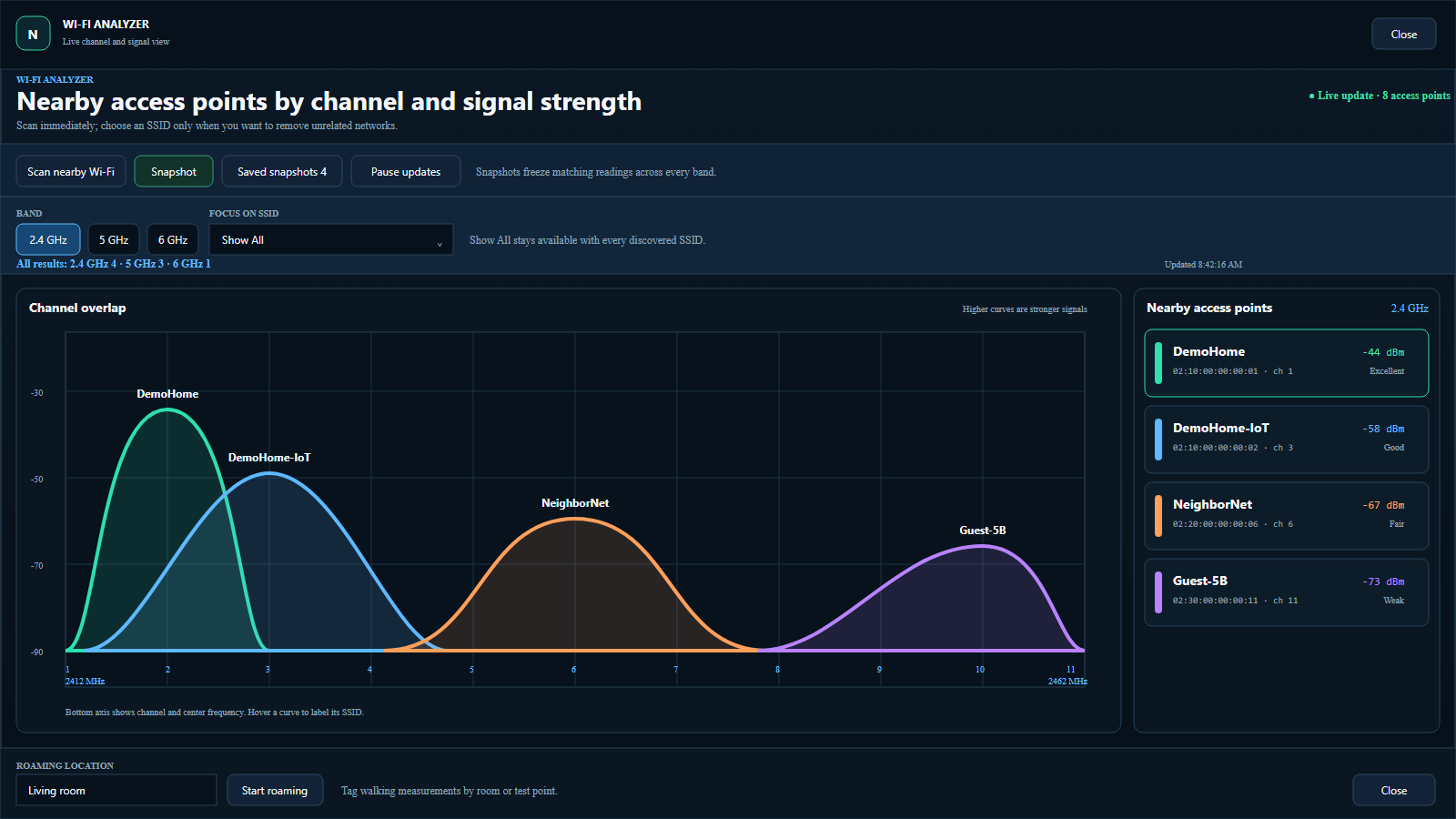
Start a live scan
- Connect a compatible Wi-Fi adapter. Windows and the adapter driver determine which networks, channels, and bands can be reported.
- Open View → Wi-Fi analyzer. The analyzer is an app panel, not a separate unmanaged Windows utility.
- Select Scan nearby Wi-Fi. A location is optional. Signal levels and charts continue updating while the view is open.
The horizontal axis represents channel or frequency position; the vertical axis is received signal in dBm. Values nearer to zero are stronger—for example, -48 dBm is stronger than -72 dBm.
Focus an SSID
Open the SSID selector and choose a network. The charts and table hide other SSIDs, but the dropdown always keeps every observed SSID available so you can switch directly. Choose Show All at the top of the same selector to restore the full view.
Hover a curve or peak to show the SSID label and key signal detail. The palette intentionally uses visually distinct colors rather than clusters of similar blue and green shades.
Capture a snapshot
- Select Snapshot. NetMap Pro captures the current observation set across every available band, not only the visible tab.
- Add a room or location if useful. The field is optional, so a quick untagged measurement is valid.
- Save. Date, time, location, SSIDs, bands, channels, and signal levels are stored in the current project.
Review saved snapshots
Select Saved snapshots in the analyzer. The list shows location, date, time, and available bands. Opening an item displays a clearly labeled snapshot-only view with its timestamp and location. Only a Close action appears, preventing a saved measurement from being confused with live information.
Run a roaming survey
Use Roaming when you want a time series while walking the site. Start the survey, move at a steady pace, and tag meaningful points such as Entry, Living Room, Patio, or Equipment Rack. Stop the survey when the route is complete; the record remains attached to the project.
If a band is missing
- Confirm the adapter supports the band you expect.
- Install the current Windows driver from the adapter manufacturer.
- Verify regional channel restrictions and access-point configuration.
- Remember that 6 GHz visibility requires compatible hardware and Windows support.