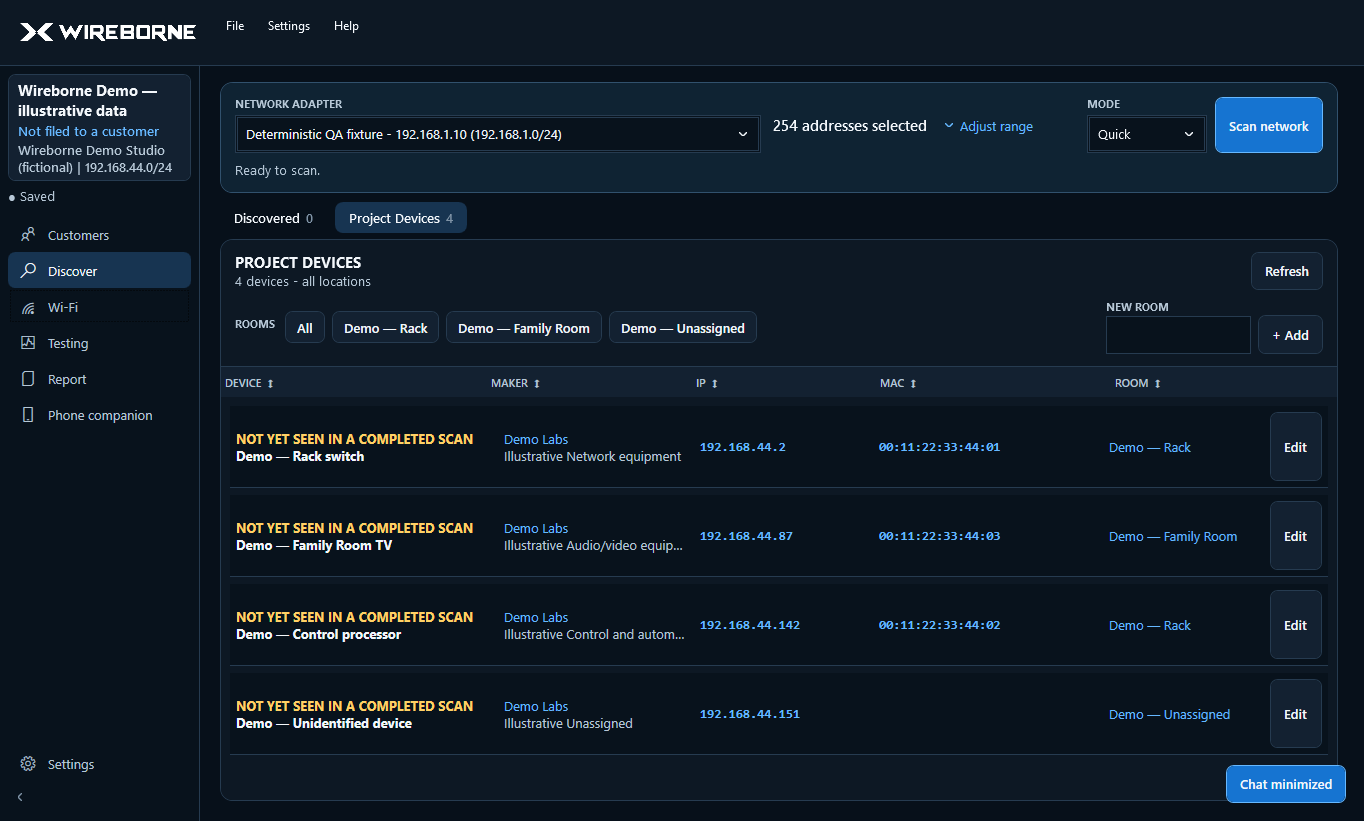
Adapter and IP range
Select the physical adapter on the job network. Wireborne fills two fields with a human-readable starting and ending address. A typical small network is 192.168.1.1 to 192.168.1.254.
Quick versus Thorough
Both modes perform real scans; they are not cosmetic presets. Thorough is intentionally slower.
Read and control the results
- Device: the best current name plus online state and timing.
- Maker / NIC: manufacturer evidence associated with the device and network interface.
- IP and MAC: click either value to copy it to the clipboard.
- Product / Services: observed product hints and approved service evidence.
- Test: opens Diagnostics directly to Local Testing with that IP selected.
- Edit: opens optional fields such as name, room, type, and notes.
Select any column heading to sort ascending, then again to sort descending. Long values are truncated inside their own column so they do not displace neighboring data.
Discovered versus Project Devices
Discovered Devices is the complete scan view. Project Devices is the subset you want to document, organize, and report. Drag a row from Discovered Devices to Project Devices. The original remains visible, including its Test action.
You can add now and fill in room, friendly name, type, and notes later. Adding a device should never require unnecessary data entry.
How identification works
Wireborne correlates MAC/OUI vendor information with names, discovery protocols, and observed services. A manufacturer can describe the network interface vendor rather than the finished product, and privacy-addressed or silent devices may remain unknown.
Repeated observations for the same network identity are consolidated to prevent duplicate rows. If two entries truly represent the same IP and MAC, report the example from the saved project so it can be investigated.